Clarity 2026 Manual Update Process
If you are unable to use the updater tool to automatically download and install the updates due to network restrictions, you can download them and run them manually.
DOWNLOADS
First you will need to download the following into a folder on the machines, do not unzip them: For example C:\Clarity\Updates
Host
Task Servers
Updater Files
Download the updater files from the links below and place them in the same folder as the content above. For the txt files it will just bring up a web page with that text so just right click on the page and save as to save it to the proper folder.
Host
- http://s3.amazonaws.com/IMAGINiTSoftware/Updates/ClarityHost2026.txt
- http://s3.amazonaws.com/IMAGINiTSoftware/Updates/ClarityHost2026_History.txt
- http://s3.amazonaws.com/IMAGINiTSoftware/Updates/ClarityHost2026.hash
Task Servers
- http://s3.amazonaws.com/IMAGINiTSoftware/Updates/ClarityTask2026.txt
- http://s3.amazonaws.com/IMAGINiTSoftware/Updates/ClarityTask2026_History.txt
- http://s3.amazonaws.com/IMAGINiTSoftware/Updates/ClarityTask2026.hash
Configuration Change
Next, we need to edit the config files so it knows where to pull the updater from.
- Make a backup copy of the config file and name the .config extension .ORIG
- Open with notepad: IMAGINiT.Updater.exe.config
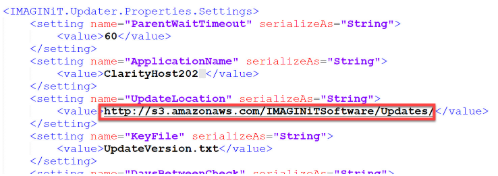
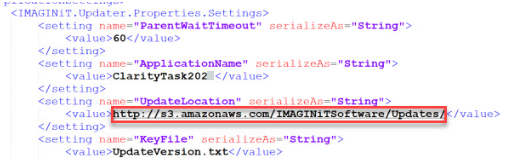
- Look for an entry in the XML file that says that the location for the UpdateLocation is:
- http://s3.amazonaws.com/IMAGINiTSoftware/Updates/
- Replace THAT url shown below with the folder that you have, i.e.
- Example: C:\Clarity\Updates
- You will do this on both the host and the task servers if you need to update them each manually
Host File Location
- Host path C:\Program Files\IMAGINiT Technologies\Clarity Monitoring Service\IMAGINiT.Updater.exe.config
- Host Config Example of location to change
Task Server File Location
- Task Server path C:\Program Files\IMAGINiT Technologies\Clarity Task Server for Revit\IMAGINiT.Updater.exe.config
- Task Server Config Example of location to change
-
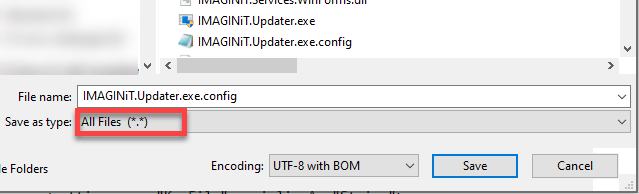
- If you get an error saving the file, save it to the desktop, then move it into the folder and overwrite.
- Make sure it is still seen as a configuration file or it will not work.
Running the Updater
Run the updater again by right clicking and Run as Administrator– it will look in that folder for the updates